
Printing Checks
This tutorial will show how to print checks during service, from closed orders, as well as receipts when closing an order.
How to Print During Service
When a check needs to be printed during service and the order DOES NOT need to be closed follow the steps below.
Step 1:
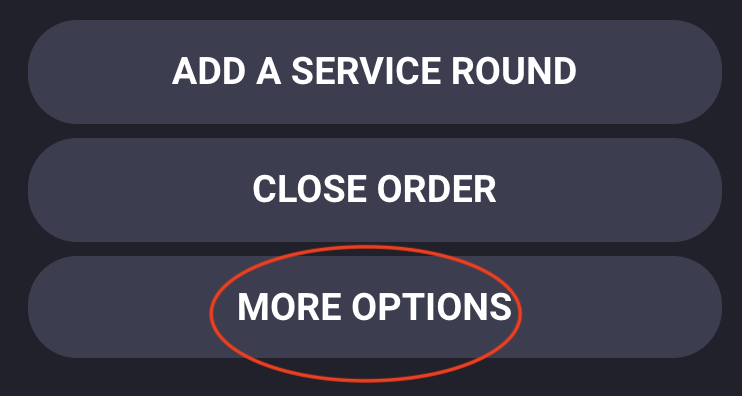
Locate the open order you wish to print, and tap  .
.

Step 2:
Tap  and
and 
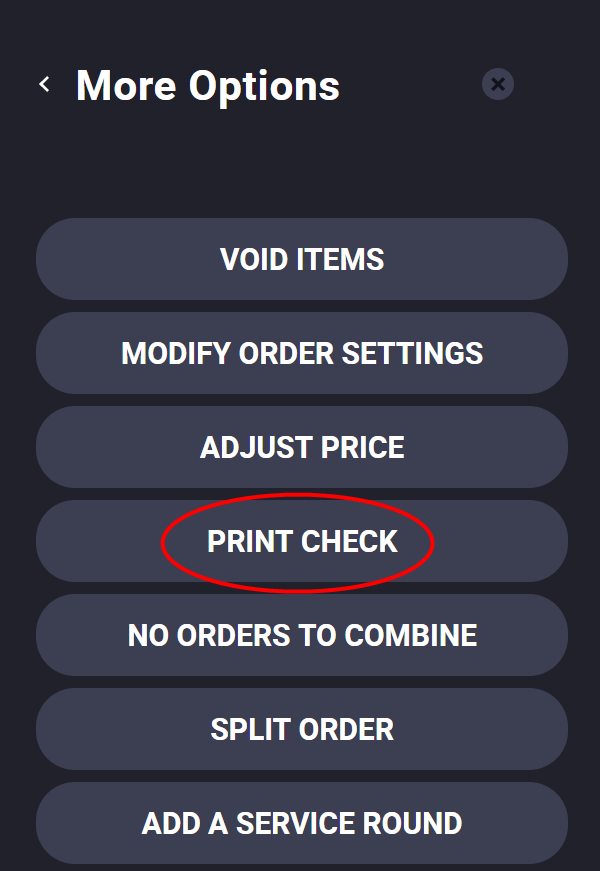
Step 3:
 .
. 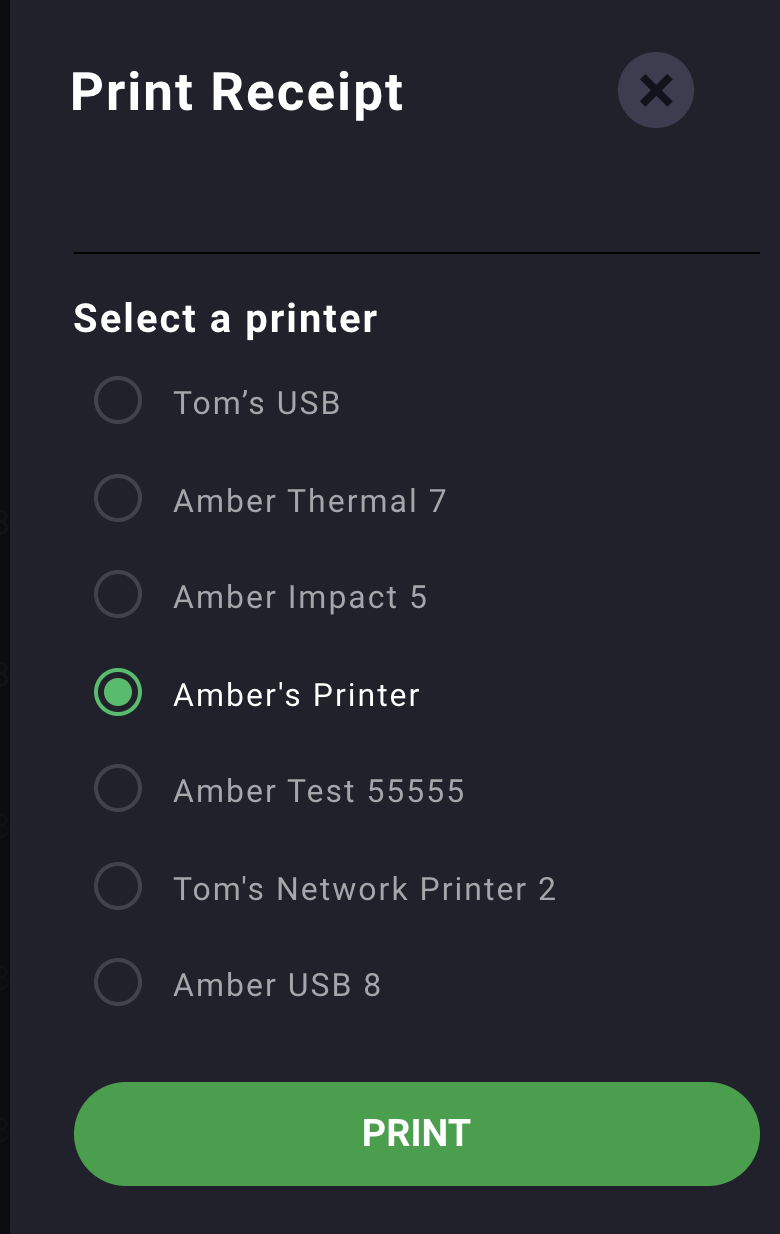
Choose your preferred printer from the list and select  .
.
Printing Receipts from Closed Orders
Step 1:
Locate the order that requires a receipt to be printed; tap  .
.

Step 2:
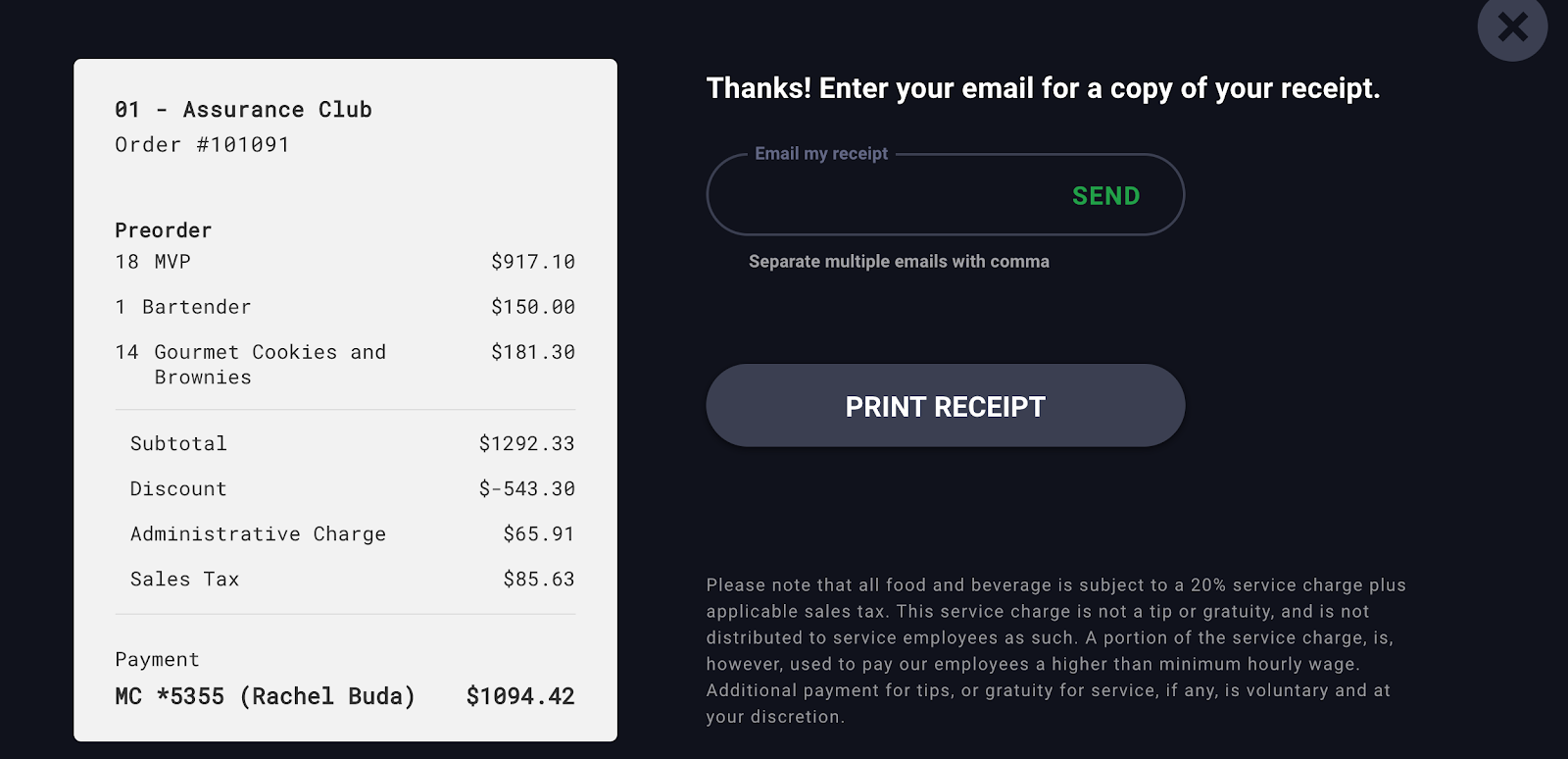
Tap  you will be brought to the receipt page, tap

Step 3:
Choose your preferred printer from the list and select . You will be notified that the print was successful.
How to Print Receipts When Closing a Check
Step 1:
Select the order you wish to close and tap  .
.

Step 2:
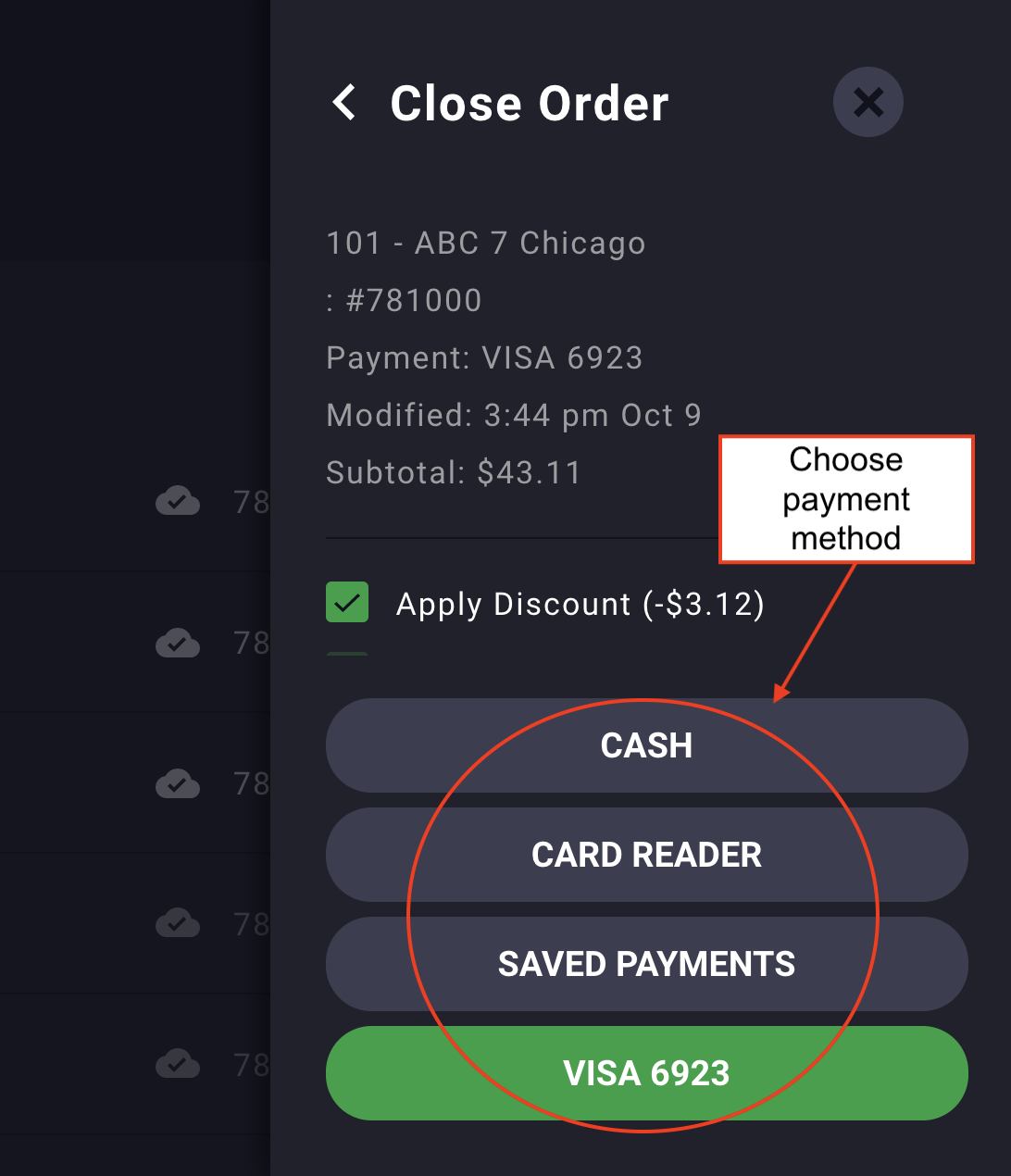
Select the payment method the guest wishes to use.
Step 3:
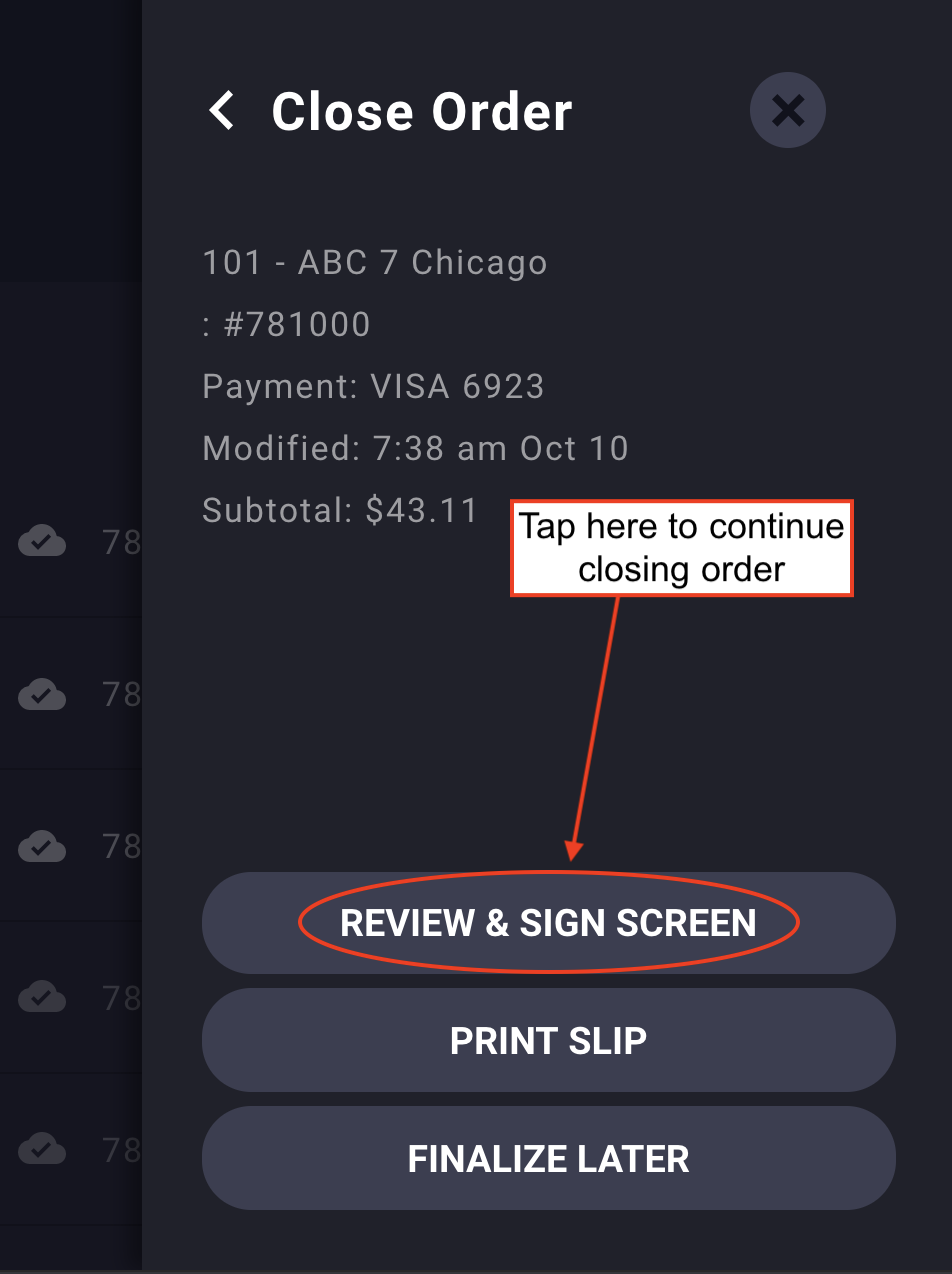
To move forward with closing the order, select Review & Sign Screen or Print Slip. To move forward with the Review & Sign workflow, continue to Step 4. To Print the Slip and Finalize Later, please refer to the Close Orders guide.
Step 4:
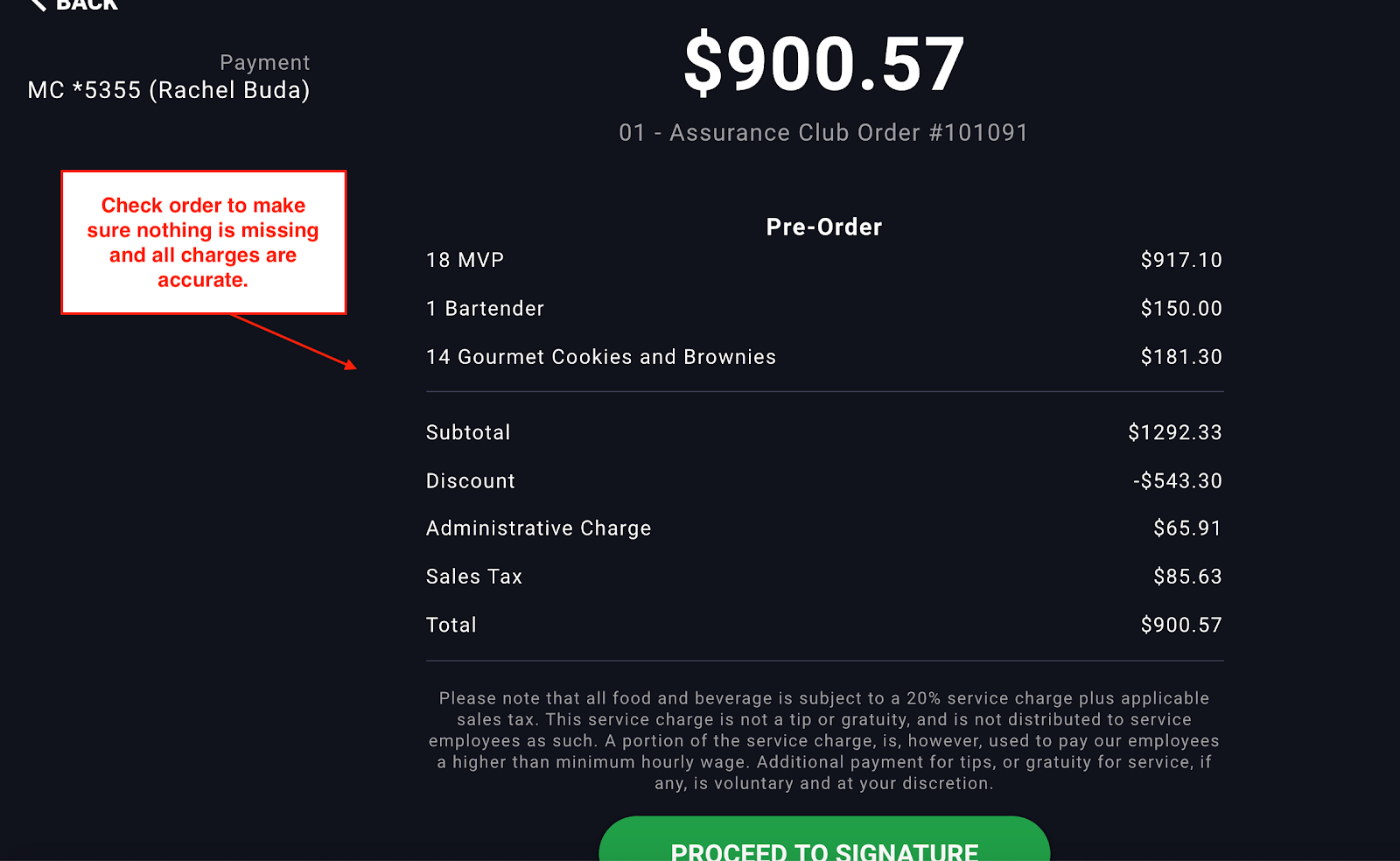
Review the receipt, make sure there are no missing items, and all charges and entitlements are accurate prior to selecting  .
.
Step 5:
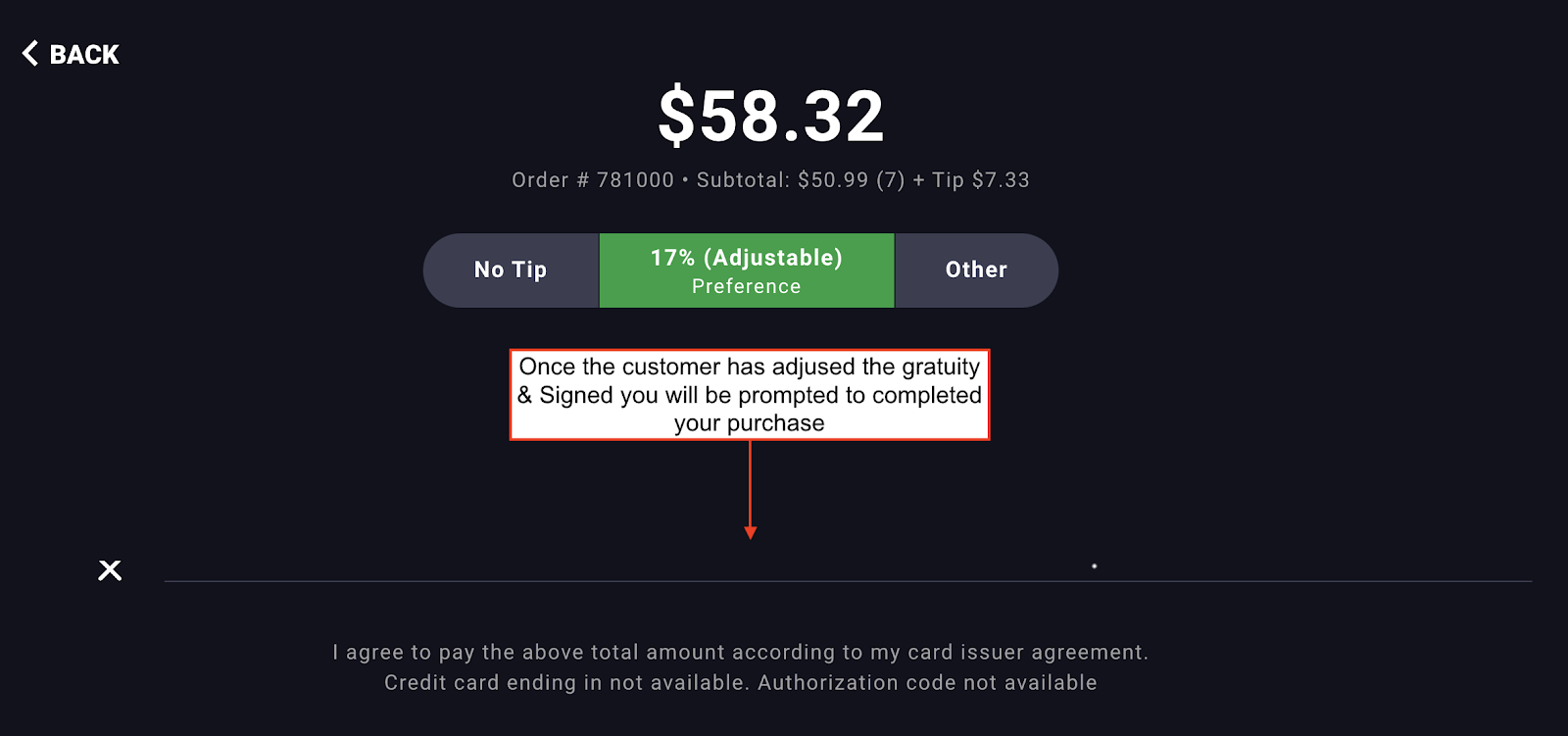
Once the customer has verified the gratuity and signed for their order the  button will appear at the bottom of the page; tap to move forward.
Step 6:
The order confirmation page will show the customer receipt and give the option to email or print; tap .
Step 7: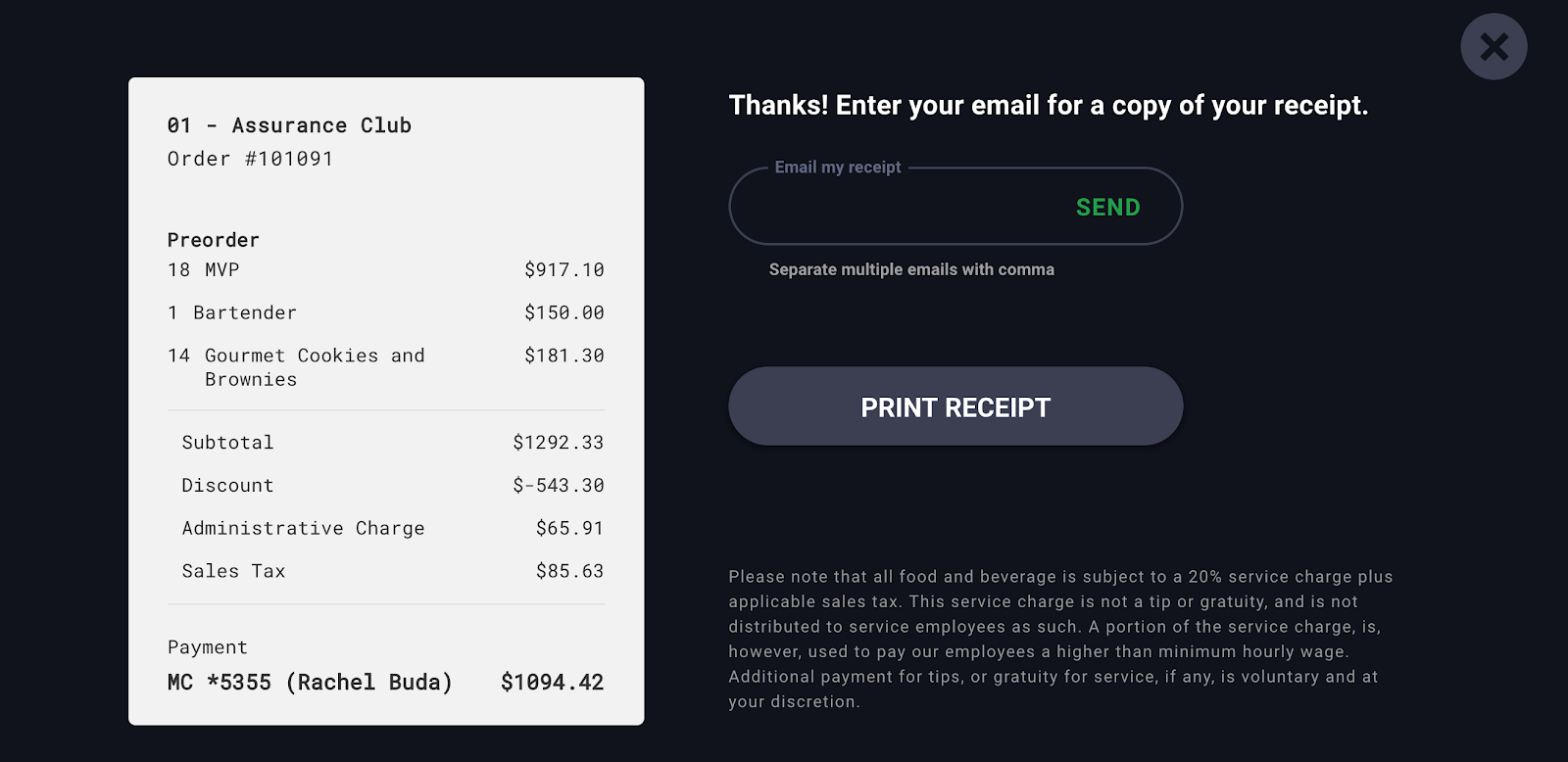
Choose your preferred printer from the list and select . You will be notified that the print was successful.
Comments
0 comments
Please sign in to leave a comment.